
Getting started
Welcome to Checkpoint. This guide walks you through your first run, from creating an account to seeing your result on the leaderboard.
Would you rather just go for a run? You don’t need an event at all — see Training on your own for running any public course solo and comparing your time with everyone else who has run it.
1. Create an account
Section titled “1. Create an account”Open the app and register with your email and a password. You can also sign in with Google or Microsoft.
2. Find an event
Section titled “2. Find an event”Browse the Events list and open one that’s open for registration. Each event shows its start time, course length, and whether it’s a competition or open training.
3. Register
Section titled “3. Register”Register as an individual, or — if you captain a team — on behalf of your team. If the event has already filled up, you can join its waitlist instead and you’ll move up automatically as places free up.
4. Run
Section titled “4. Run”When the event goes live, open your run page. Punch each control from your phone as you reach it — by GPS, or by scanning its QR code if the event uses them; if you lose signal, punches are saved and sync automatically.
5. Watch live
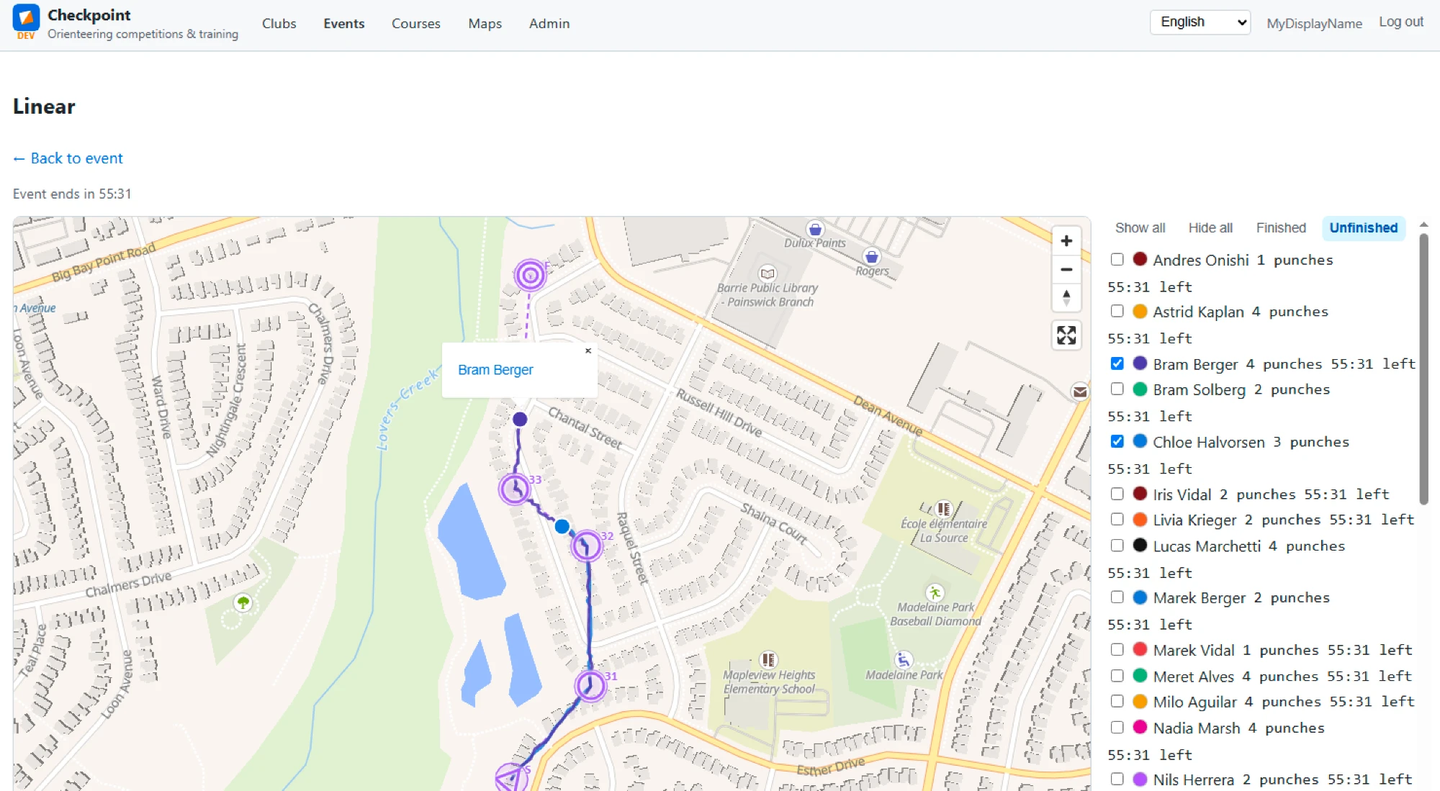
Section titled “5. Watch live”While the event is live, anyone can open Watch online from the event page to watch every athlete’s position and progress on the course map in real time, alongside a roster showing each one’s punches and time remaining.
Drag the time slider under the map back to see where everyone was at any moment, or press ▶ Play to replay the race at 10× to 120× speed — during the event or afterwards, to go over route choices and where time was lost.
6. See your result
Section titled “6. See your result”Finish at the last control. Your time and splits appear on the event leaderboard, and you can review your own detailed result and GPS track.